Loading...
@landnthrn
Mind lives on a planet always downpouring blue violet rain & thunderstorms. A ghost driving a meat-coated skeleton made from stardust, riding a rock hurtling through space. Just the universe experiencing itself through life, this one is very strange.
6
Projects
27
Upvotes Received
1
Upvotes Given
4
Followers
2
Following
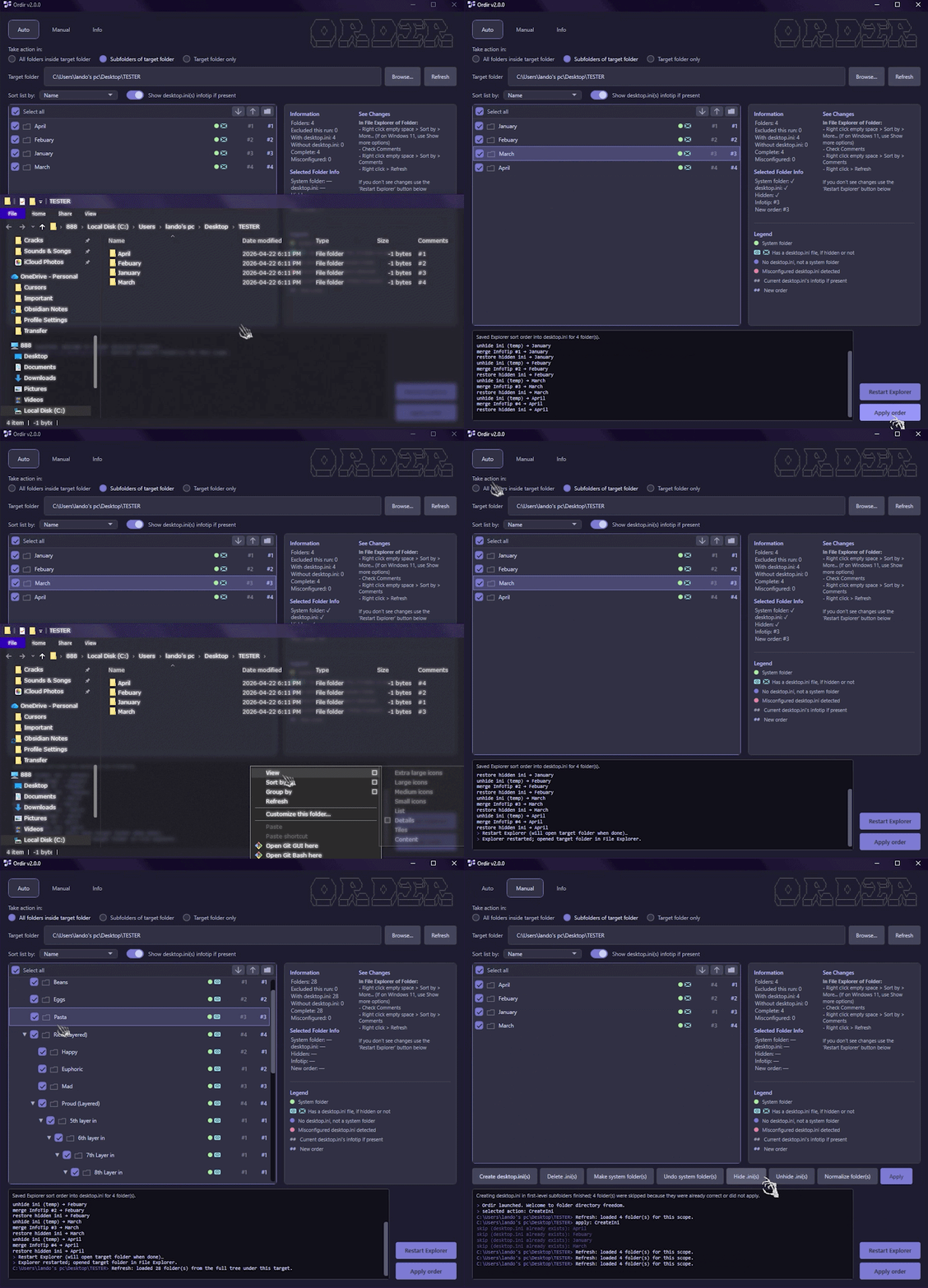
Finally have the freedom to organize/order folders any way you want in Windows File Explorer, and add custom thumbnails. Say goodbye to the gut-wrenching mess of foldername ordering by A–Z or numbers, and order limitations in general. Your configuration transfers wherever you move an organized folder, even to other drives. Save a custom setup, or for bulk operations export lists, feed them to an AI to organize, import a revised list, and apply. HOW IT WORKS: Ordir uses a fairly unknown method via hidden desktop.ini files, infotips, and sorting by Comments in Explorer—think of it as giving folders metadata and sorting by it. INPUT: 1. Load a target folder 2. Order folders however you want APPLY PROCESS: 1. Creates hidden desktop.ini file(s) in each folder 2. Inserts infotip(s) (order number) into those desktop.ini file(s) 3. Makes folders into system folder(s) 4. Hides desktop.ini file(s)

A Obsidian plugin that automatically creates and maintain's a graph view of your notes, if their organized into folders. Allowing for folders to be the root node, which just makes sense visually. Additionally provides a quick access hub note display for each folder. HOW IT WORKS? Creates a note for each folder (hidden by default). These act as folder nodes in graph view that all notes inside their folders attach to. Links to each hub note get added at the top of notes, connecting them together to their folder node. Options to customize the feel of the workflow to your liking.
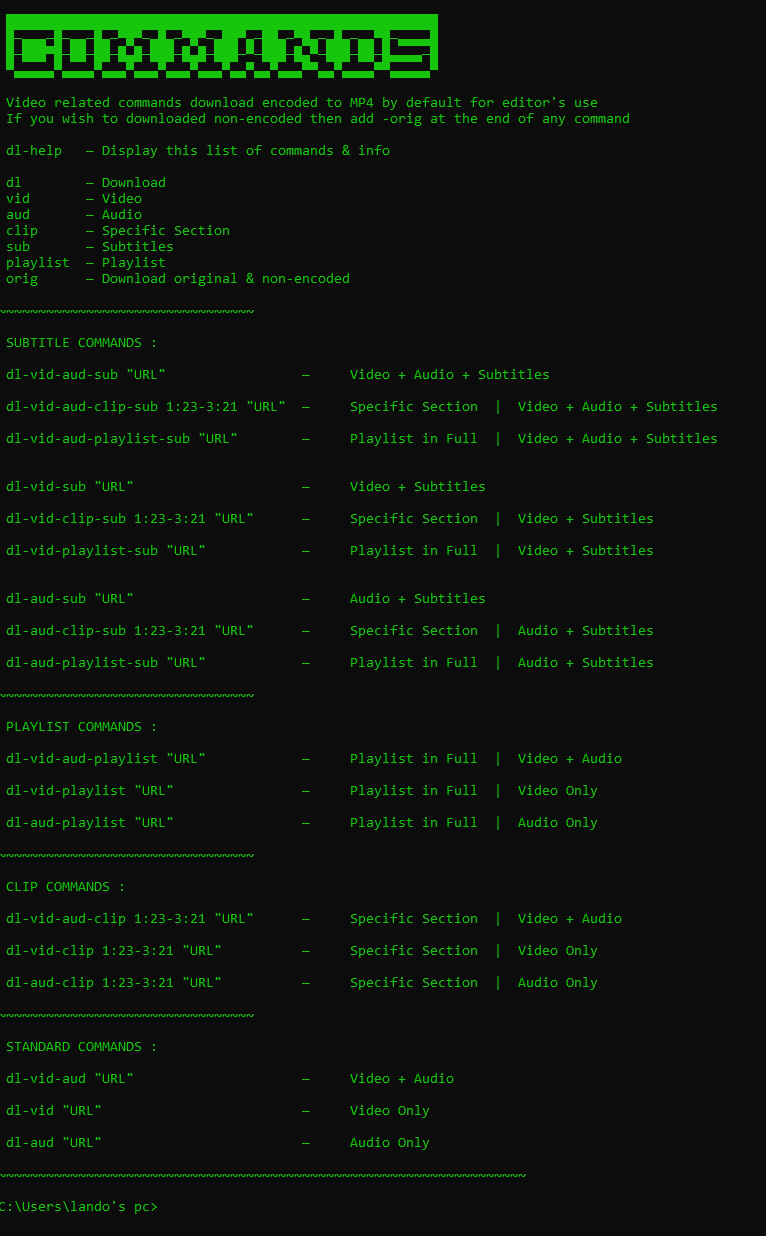
*BIG UPDATE HAPPENING IN THE COMING WEEKS* A Command Prompt UI for YT-DLP, with simplified commands and configurations. Configured to download at the highest available quality video & audio always, with 36 different variations to download by. Video related commands download encoded to MP4 & MP3 by default for editor's use and compatibility with most applications If you wish to download original & non-encoded, just add -orig at the end of any command You can easily change the command names if you'd like, it's as simple as renaming the command .bat files Simple setup instructions included of course
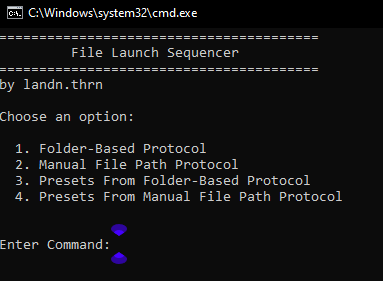
A Windows batch script and Command Prompt UI that let's you create, save, run customized auto open sequences MAIN PURPOSES: — Open a sequence of files or applications automatically — Opening project files for software that allows you to have multiple projects open at once, but doesn't allow you to actually open multiple projects at once. This can automate having to open project files individually. — Can be useful for other various tasks FEATURES: - Scan folder(s) for the target format(s) or paste file paths directly - Use exclusion filters to skip specific folders path(s), folder name(s), or keywords in filenames - Set configurable delays to prevent system overload from opening many files at once (also very useful for giving large programs time to launch like editing software...etc..) - Works with any file type your system can open - Save presets to reuse later - Preview & edit presets inside the UI or by editing .json files

This feature simulates the regular Windows sleeping system and adds more convenience to it. Comes with a mini UI in Command Prompt and simple setup instructions. MAIN USES: — Ease of access & speed with changing specifics to your sleeping setup, useful for various tasks — Got a task that requires your PC to stay awake for long periods of time? Set a sleep timer, or disable sleep in seconds with the cmd UI — Want you're PC to sleep after a download/upload is expected to finish? Set a sleep timer for it — You're PC refuses to sleep and you just can't figure out the cause of it? This will simulate the default sleeping system for you CMD SLEEP COMMANDS: sleep — Display this list of commands sleepon — Enable idle sleep sleepoff — Disable idle sleep sleepstatus — Check if the watcher is enabled/disabled sleeptime — Change the set idle time to trigger sleep sleepmonitor — Change monitor(s) sleep time sleeprestart — Restart the sleep watcher task You can cancel sleep by pressing Ctrl + C while the warning is visible, or pause/resume the countdown by clicking the window and pressing any key. If you have media/audio playing, it will pause all audio before sleep triggers